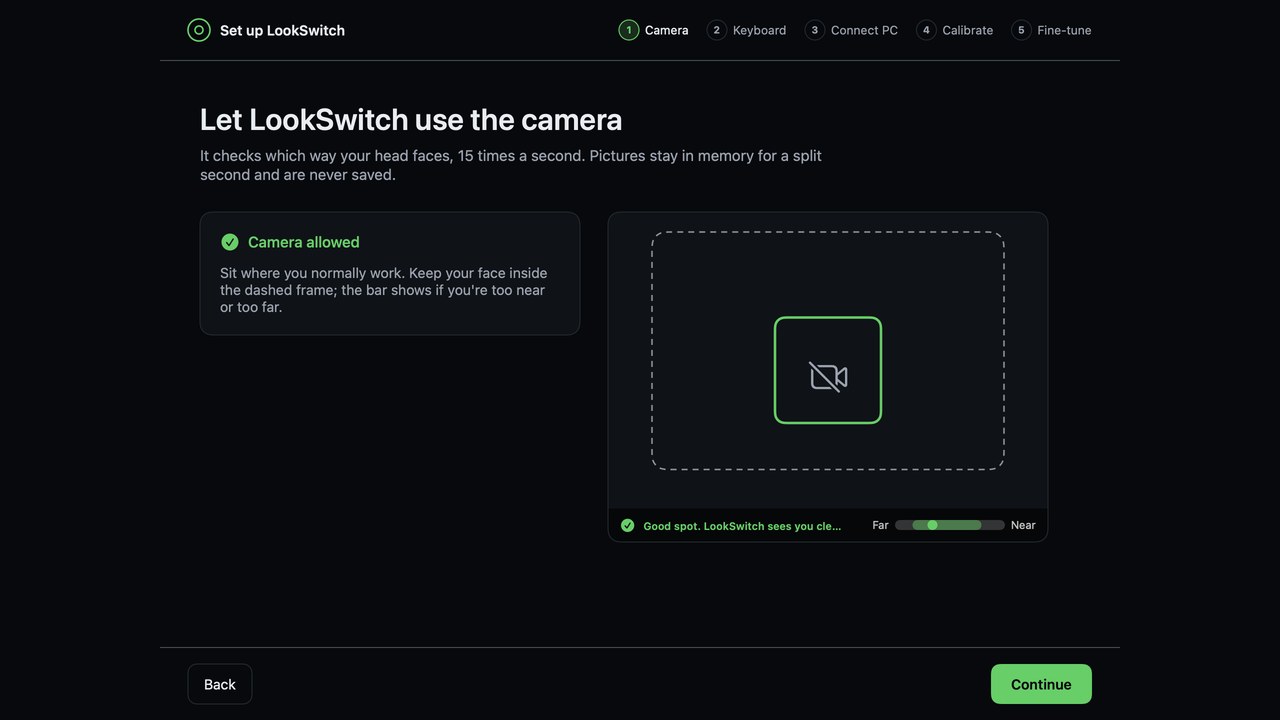
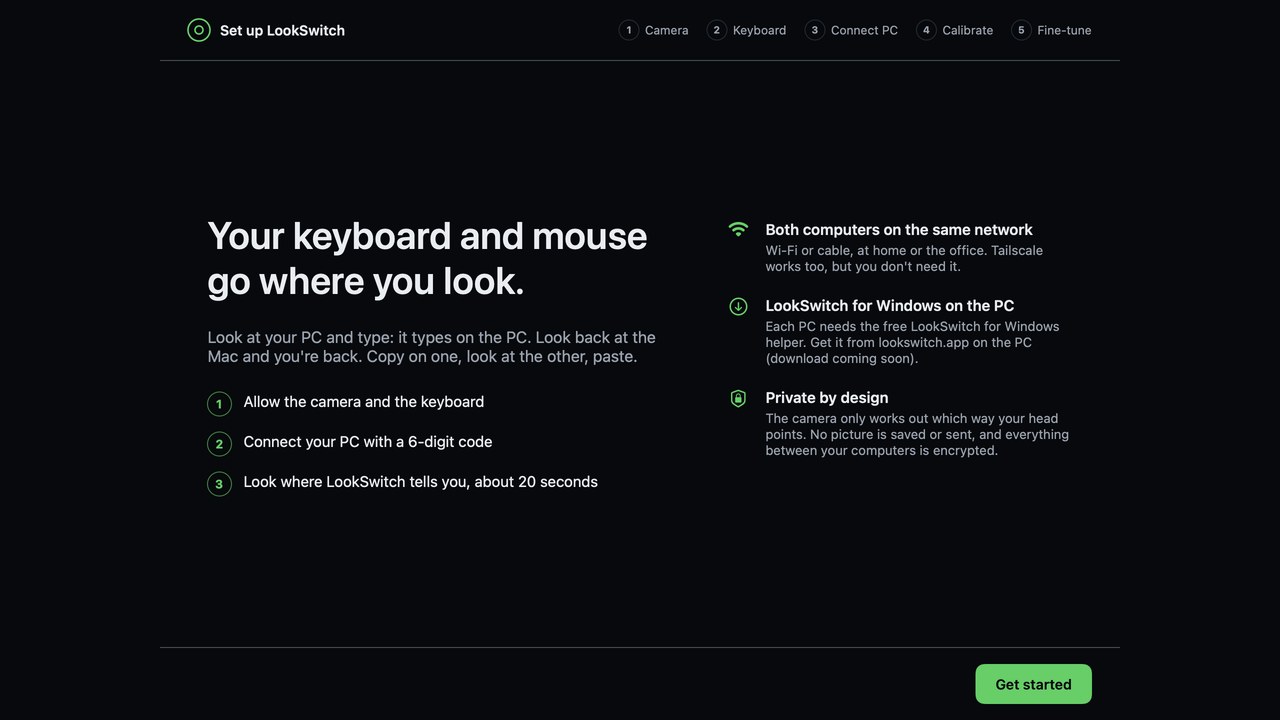
LookSwitch's welcome screen on a Mac: Your keyboard and mouse go where you look. Look at your PC and type: it types on the PC.

Look at a screen.Your keys and mouse are already there.

Mac

Open the .dmg and drag LookSwitch into Applications. macOS 14 or later on Apple silicon.

For Mac and Windows → one keyboard, mouse and clipboard across your computers · No account

Your keyboard and mouse go where you look.

LookSwitch uses your Mac's camera to see which screen you're facing and moves your keyboard, mouse and clipboard there, across your Mac and Windows PCs. No hotkeys, no dragging the mouse to an edge, no box on your desk.

Look, type, paste

Everything you'd do with a KVM switch, without touching one.

Look at a screen, type there

Turn towards your PC's monitor and your keys and mouse are on the PC. Look back at the Mac and they're back. It reads only which way your head and eyes point; a quick glance to read doesn't throw you around.

Copy here, paste there

Copy on one computer, look at the other, paste. Text, pictures and files up to 100 MB. Files paste in Finder or File Explorer.

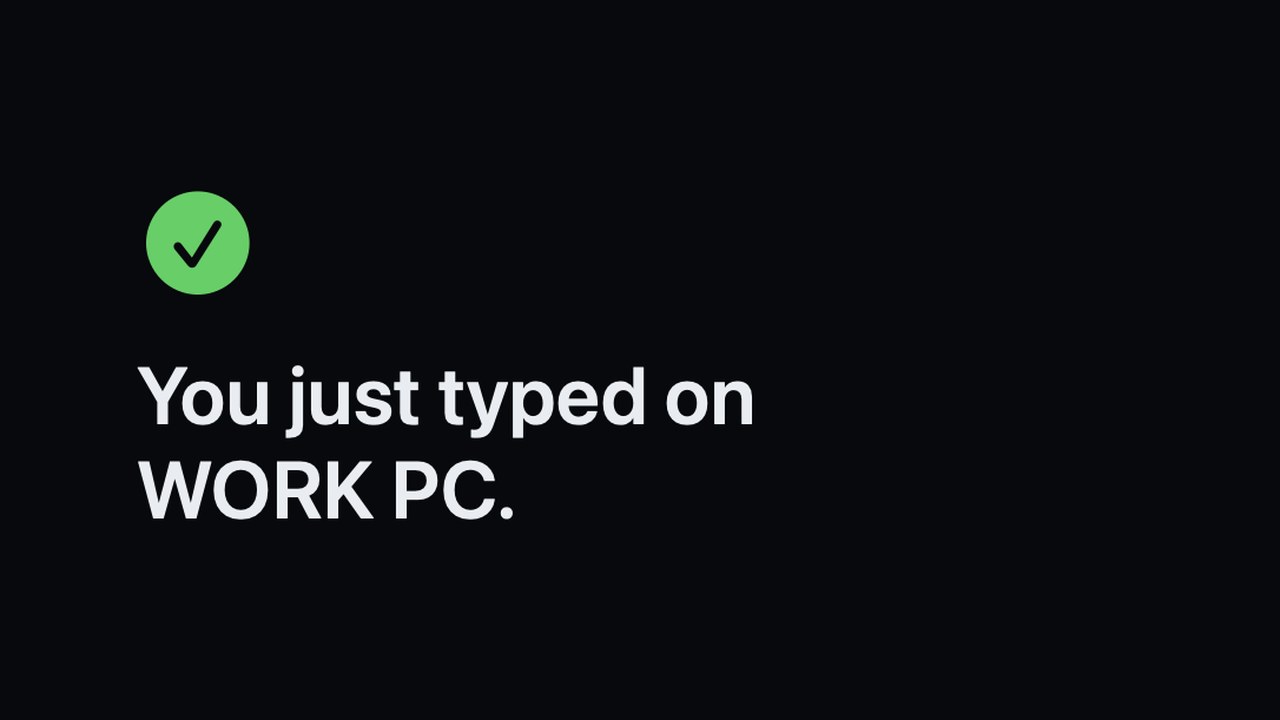
LookSwitch confirming: You just typed on WORK PC.

Any computer's keyboard works on any screen

Type on the PC's own keyboard while you look at the Mac, and it types on the Mac. Every keyboard and mouse on your desk drives the screen you're looking at. Each PC asks once before it may control your Mac.

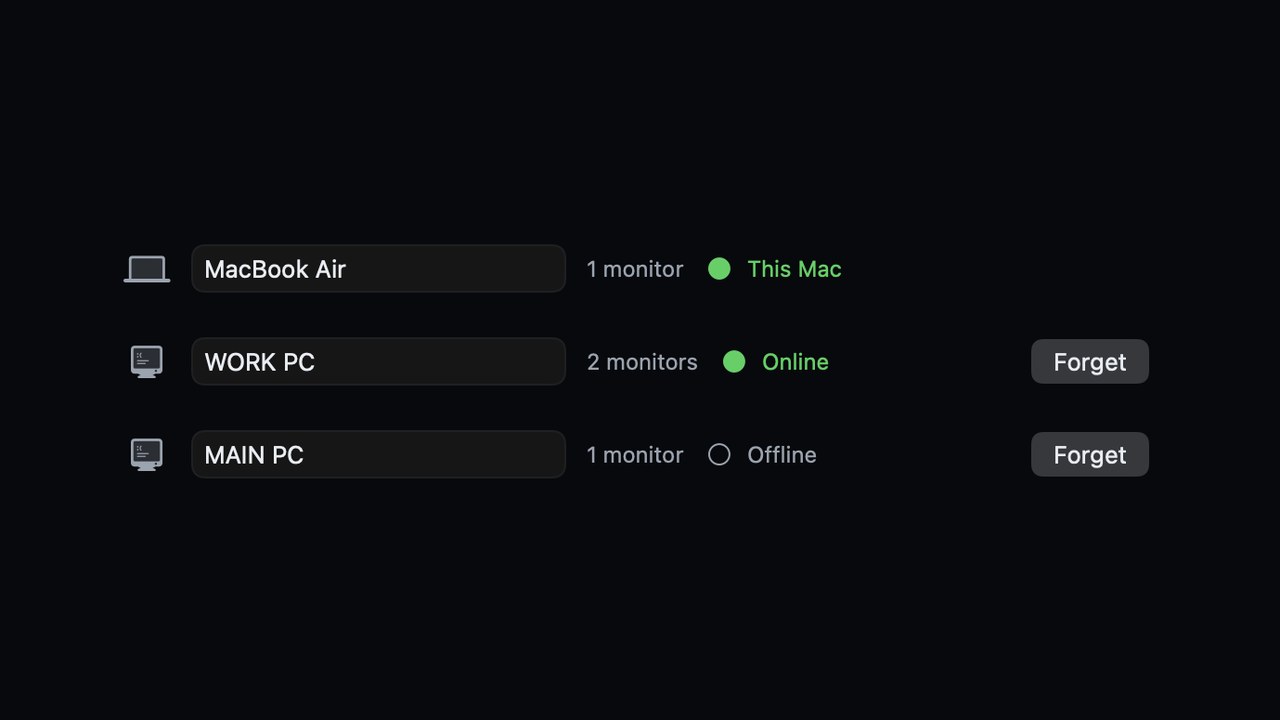
LookSwitch's computer list: MacBook Air (this Mac), WORK PC online, MAIN PC offline.

The mouse lands where you look

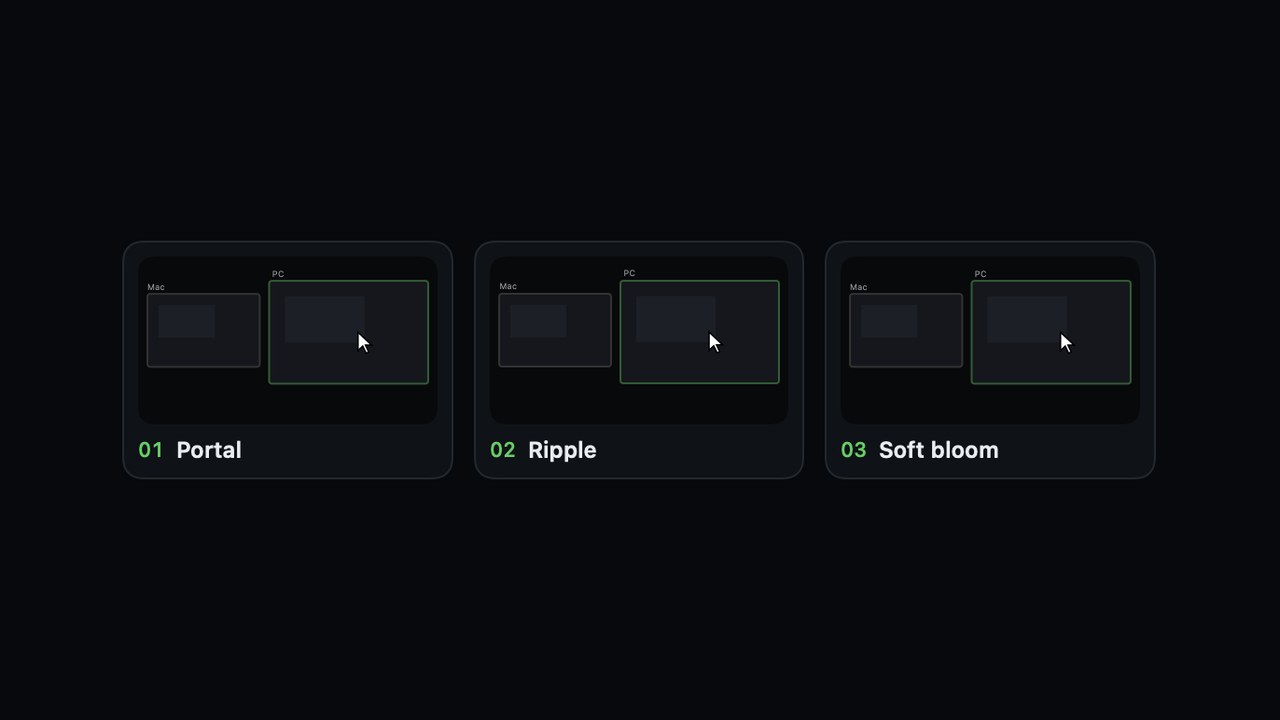
On the monitor you look at, back where you left it there, with a short animation so your eyes find it. Pick one of about 20, from a soft ring to a pointer that glides in. See them all moving.

Three of LookSwitch's mouse-jump animations: Portal, Ripple and Soft bloom.

Home and Work setups

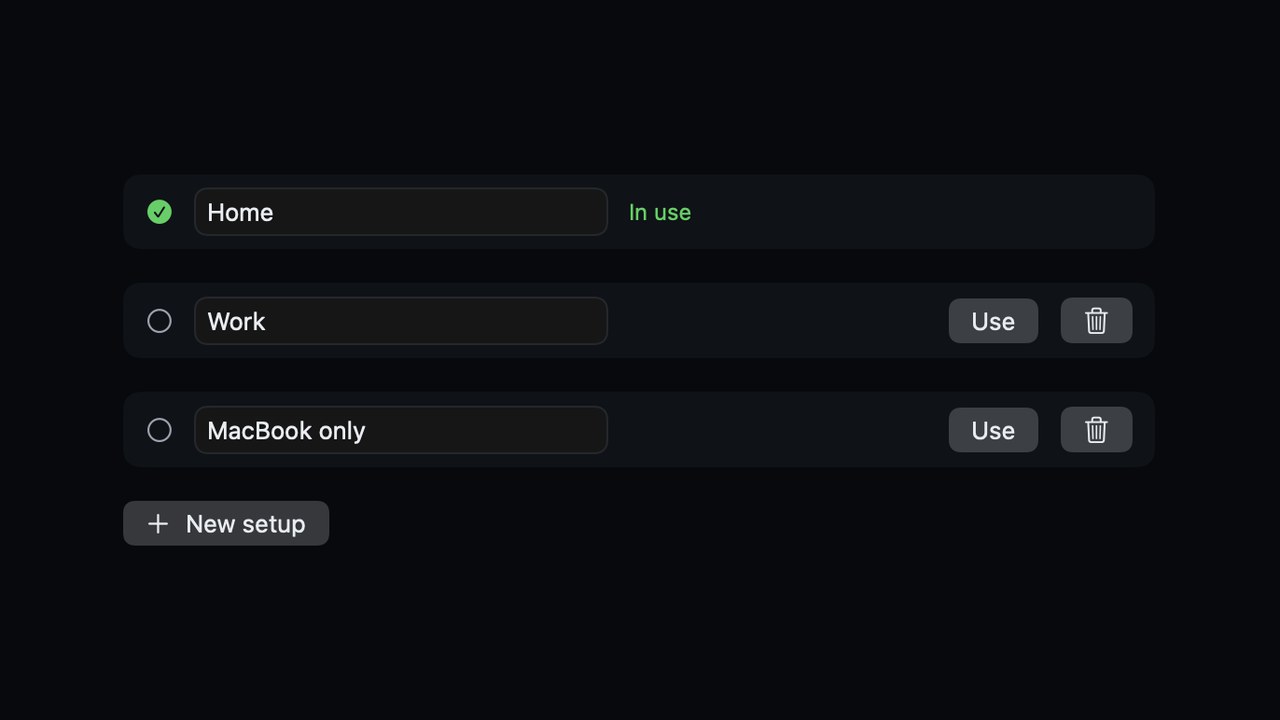
Each setup remembers its own screens. Plug your Mac into the monitors at work and it switches to your Work setup by itself; back home, it's Home again.

LookSwitch setups: Home in use, Work and MacBook only, and a New setup button.

Set up in about three minutes

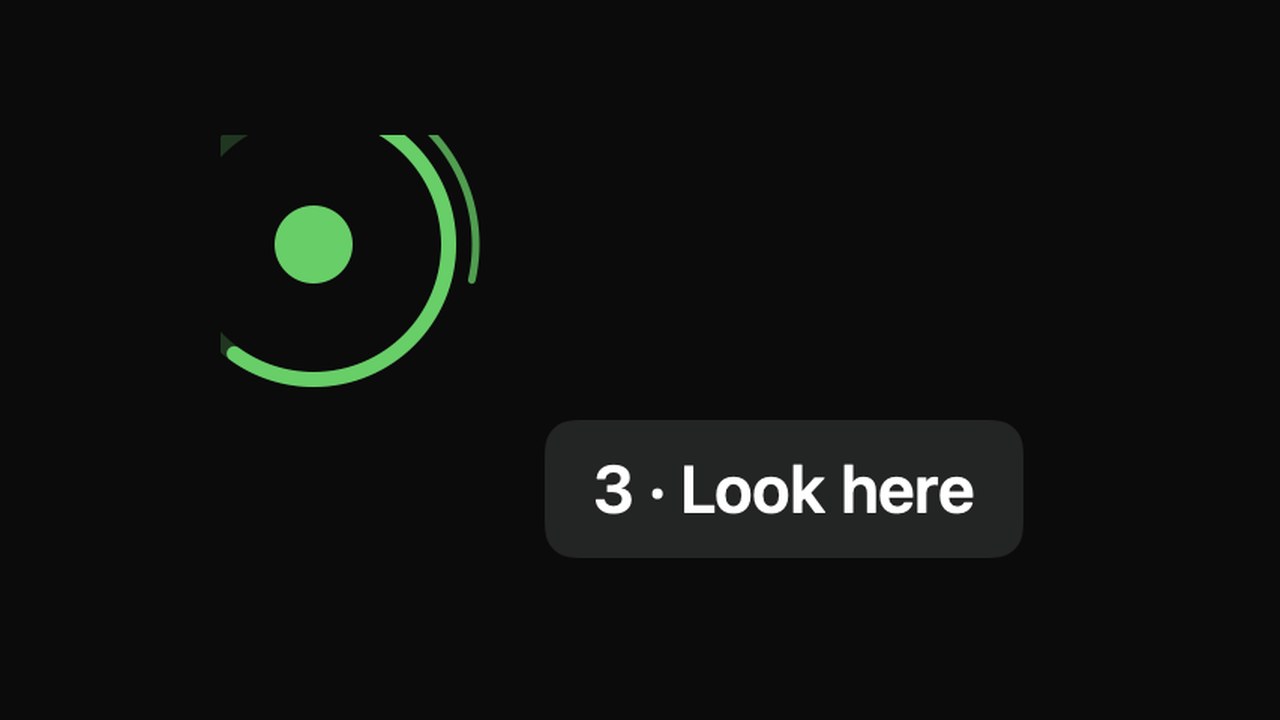
LookSwitch talks you through it: a green dot appears on each monitor, you look at it, a chime, next. Every monitor on every computer is found and numbered by itself.

When you want control

⌃⌥1–9 jumps to a screen, ⌃⌥L locks to the one you're on, ⌃⌥P turns the camera off. Or push the mouse past a screen's edge, like classic KVM software; that works with the camera off too.

A green target dot in a monitor's corner with the label: 3 · Look here.

Three steps

No account, no config files, nothing to type except a 6-digit code.

Open LookSwitch on your Mac

Allow the camera and the keyboard. Any camera your Mac can use works, including the built-in one.

Add your PC

Open the free LookSwitch helper on the PC, pick your Mac and type the code your Mac shows. Same Wi-Fi or cable at home or in the office; Tailscale works too.

Look around once

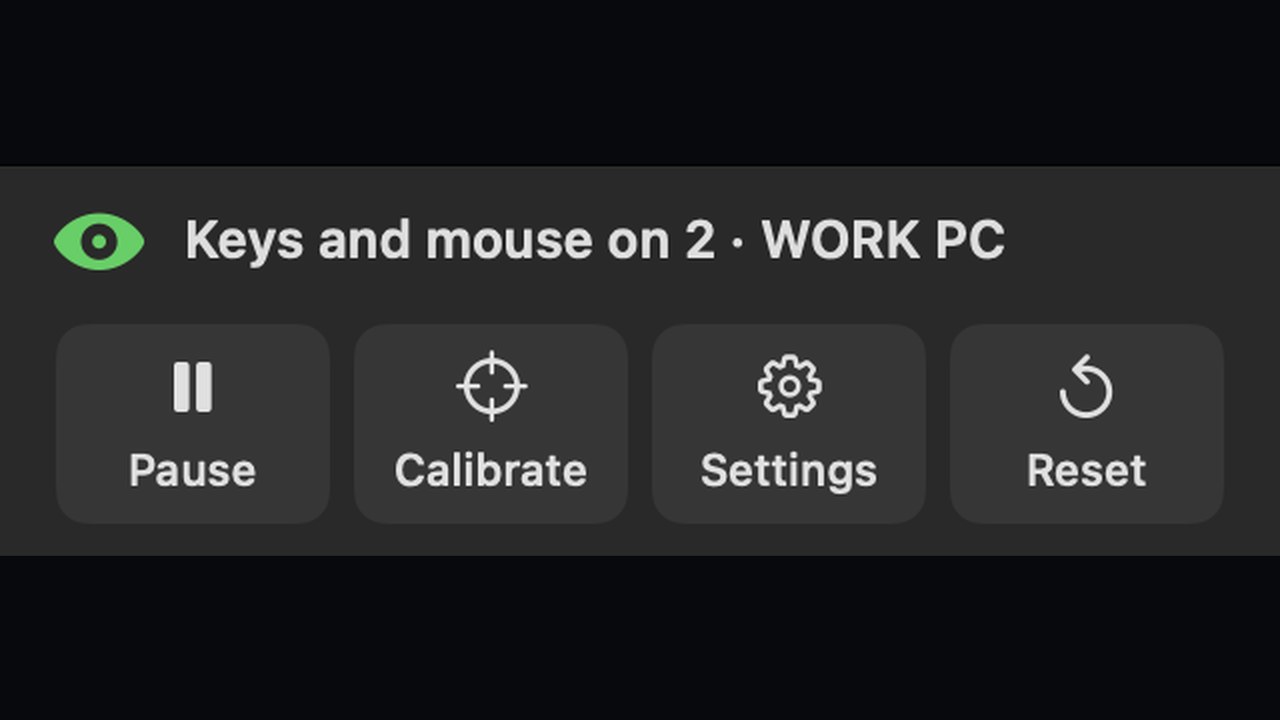
Look at the green dot on each monitor until it chimes. Then just work: the menu bar shows which screen has your keys.

Setup takes about three minutes.

macOS 14+ on Apple silicon · Windows 10 and 11 · Free to try

A camera that keeps nothing

A camera pointed at you has to earn your trust. LookSwitch keeps one number: which way you're facing.

No picture saved or sent

Every camera frame is looked at on your Mac and thrown away. No picture, no video, nothing uploaded. The camera turns off 10 seconds after you leave and comes back at your next key press.

Encrypted between computers

Each PC gets its own key when you pair it with a 6-digit code, and both screens show a check code so nobody can listen in the middle. Forget a PC and its key stops working.

No account, no tracking

No sign-in, no analytics, no ads. Passwords copied from a password manager never leave the computer they were copied on.

Questions

Do I need a special camera or eye tracker?

No. Any camera your Mac can use works, including the one built into a MacBook. LookSwitch reads which way your head points and, if you like, your eyes too.

Which computers does it work with?

A Mac (macOS 14 or later, Apple silicon) runs LookSwitch and the camera. Each Windows 10 or 11 PC runs the free LookSwitch helper. Mac-to-Mac, a Windows PC as the hub, and Linux are planned, not ready.

Do the computers need to be on the same network?

On the same network, at home or in the office, they find each other by themselves. On different networks, Tailscale works, and you can tell LookSwitch to connect over Tailscale only.

What if it picks the wrong screen?

Press ⌃⌥ and the screen's number to jump there, or ⌃⌥L to stay where you are. In Settings you can choose head only, head and eyes or mostly eyes, re-learn one monitor, or run a more precise setup.

Will a quick glance move my typing?

No. It waits a moment before switching, never switches while you hold a key or a mouse button, and you can pick Fast, Normal or Steady.

Does it work in the dark?

The camera needs to see your face. In a dark room or with the camera covered, the menu bar shows a warning, and the keyboard shortcuts and mouse-to-edge keep working.

Is it a KVM switch?

It does a KVM switch's job in software for your keyboard, mouse and clipboard. Your monitors stay plugged into their own computers.

What does it cost?

Setting it up is free, and then you can use it for 5 minutes free. After that, pick a plan: $4.99 a month (starting with 7 days free); $50 a year, our most popular plan, which saves 16% ($9.88 a year); or $80 once for Lifetime, the best offer, which costs about what 16 months of Monthly would. The 5 free minutes count from your first switch to another computer. One plan covers all your computers, and the Windows helper is free.

How do I install it?

Download LookSwitch for Mac, open the .dmg and drag LookSwitch into Applications, then open it from there. It's signed and notarized by Apple, so your Mac opens it without warnings. LookSwitch then walks you through adding your PC.
More answers on the support page →

Try it free, then from $4.99 a month

Setting it up is free. Then use it for real, free, for 5 minutes, and pick a plan once you know it works for you.

Monthly$4.99a monthStarts with 7 days freeMost popularYearly$50a year · $4.17 a monthSave 16% ($9.88 a year)Best offerLifetime$80once, yours for goodCosts about 16 months of MonthlyOne plan covers all your computers; the Windows helper is free. Monthly and Yearly renew until you cancel. Secure checkout by Stripe: card, Apple Pay, Google Pay, PayPal. Already subscribed? Manage subscription. Without a plan, switching by looking stops, but the shortcuts and mouse-to-edge keep working.

Look, and type

Download LookSwitch for Mac, open the .dmg and drag LookSwitch into Applications. Setup takes about three minutes.

macOS 14+ on Apple silicon · Windows 10 and 11 · Free to try